Take a clear photo
Use natural light and keep the baby fully visible.
 LittleCam
Baby Photo Editor
LittleCam
Baby Photo Editor
Simple parent-friendly workflow
Milestone photos at home come down to good light, a calm baby, and a few minutes to style the result. Here is the step-by-step parents actually use.
How to
Start with soft light and a clear baby pose. LittleCam can help with the background, month marker, style, and finished keepsake.
Workflow
Use natural light and keep the baby fully visible.
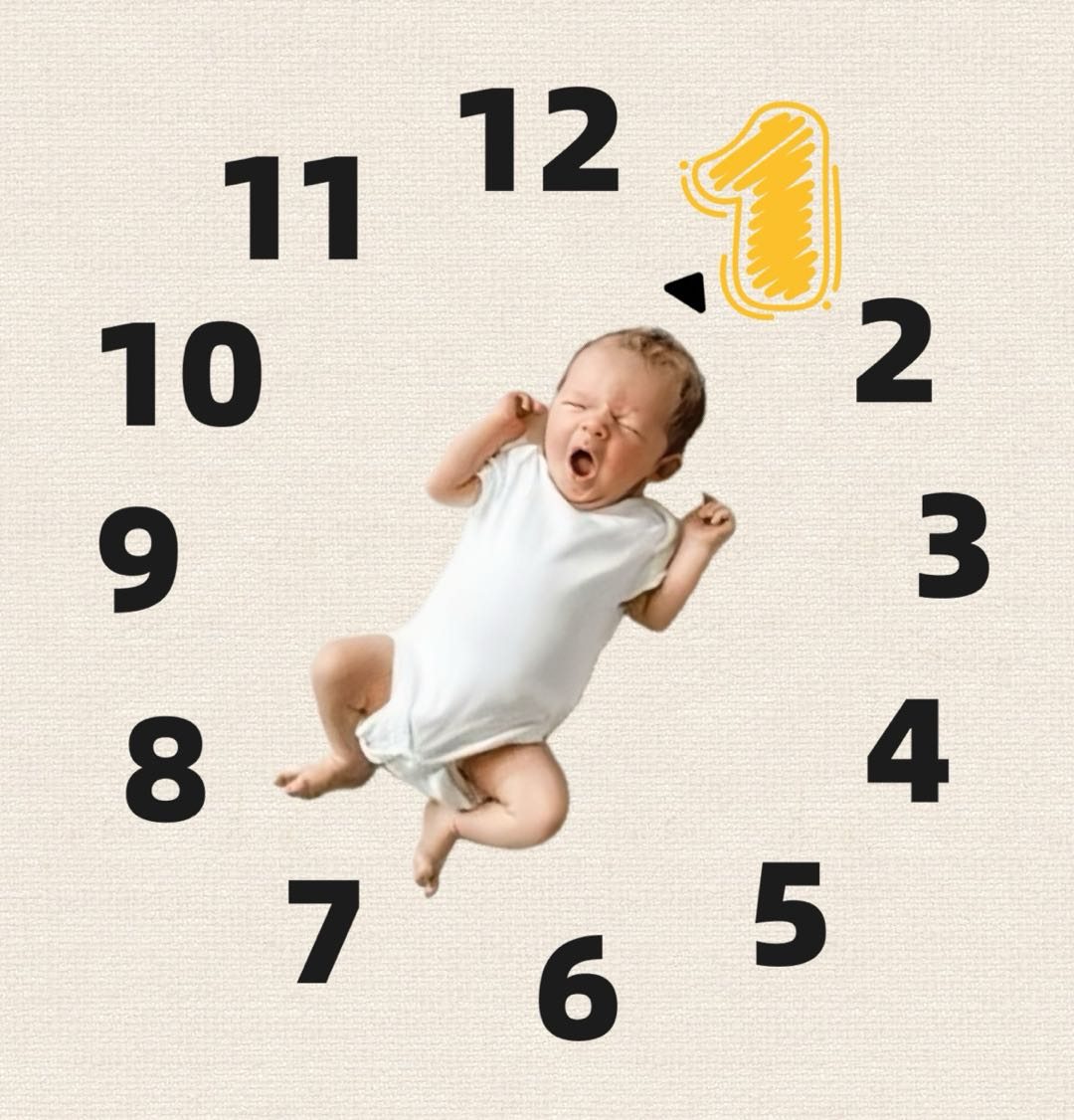
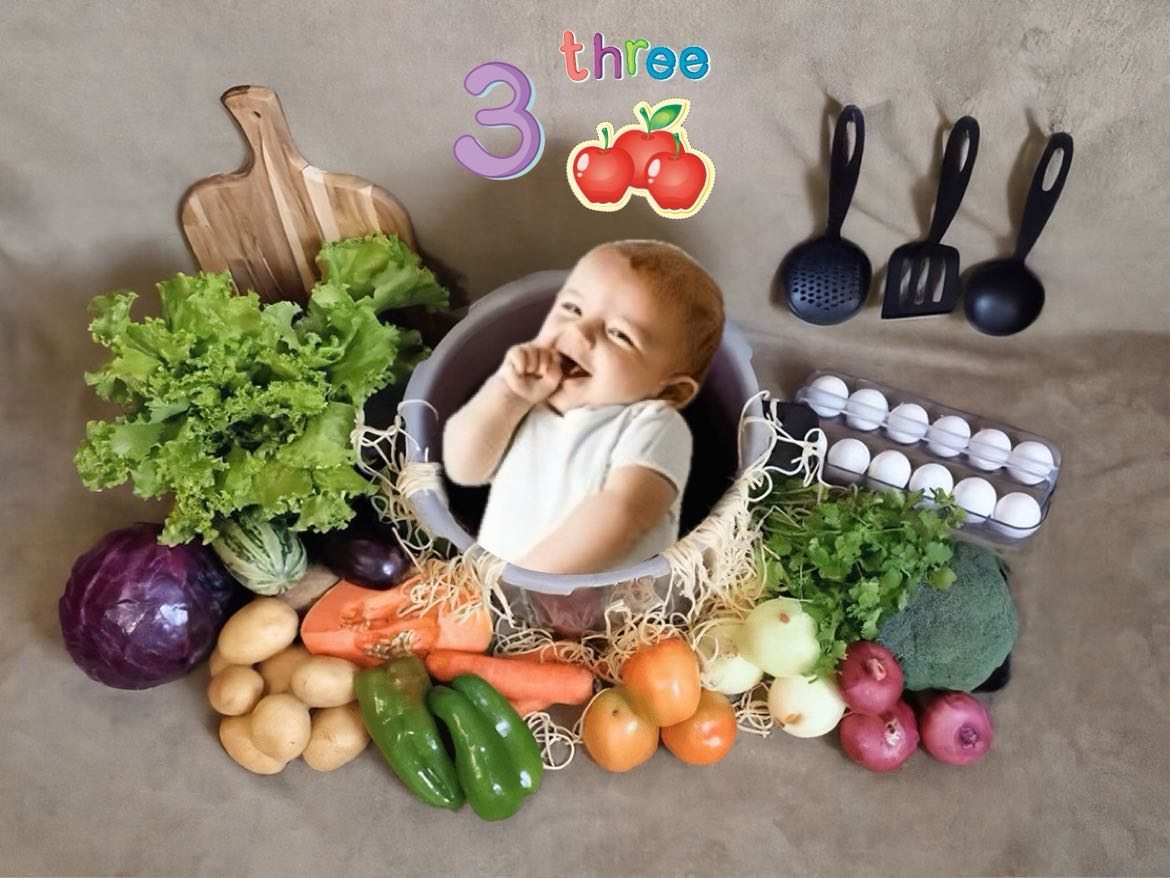
Choose a month, birthday, newborn, holiday, or first-year theme.
Upload the picture and let the app create a baby-focused design.
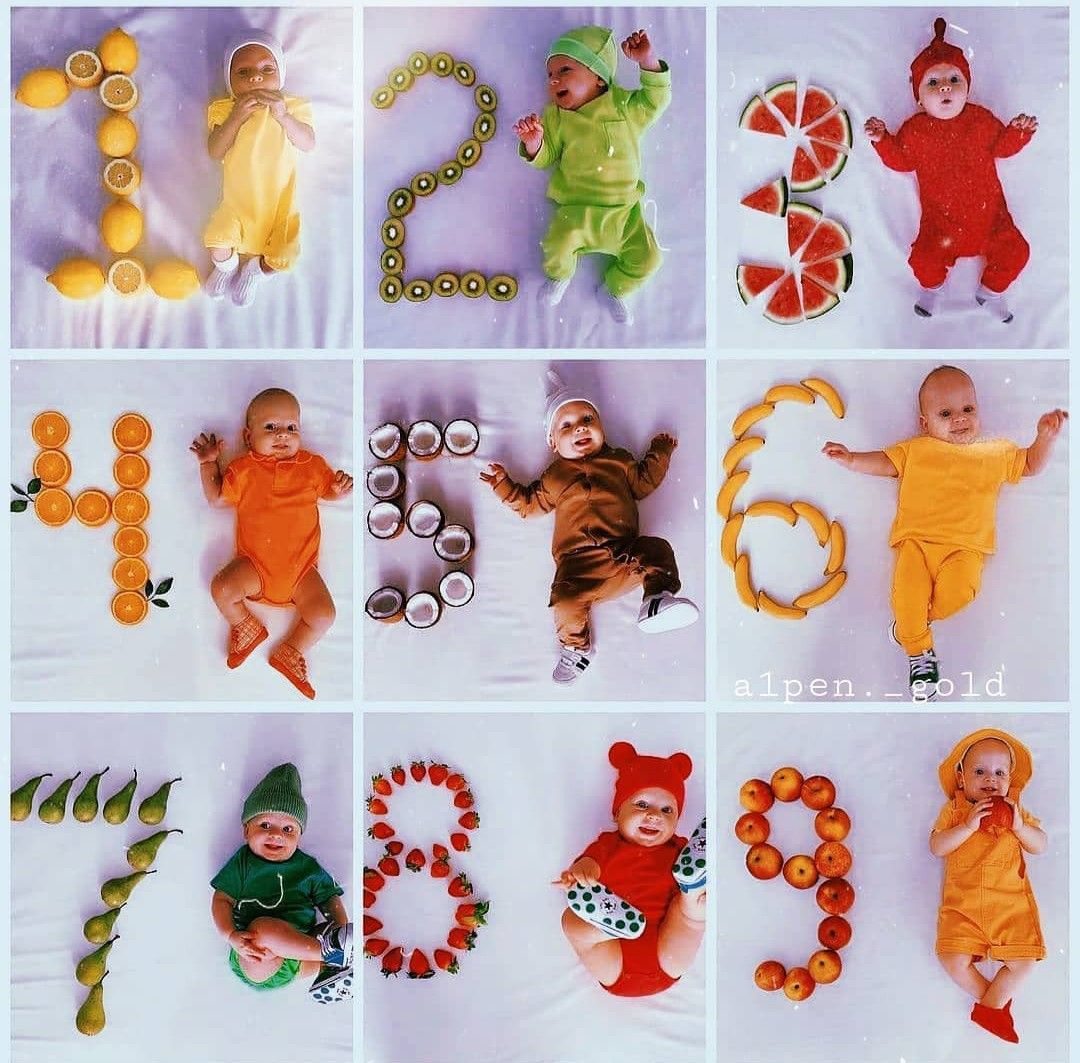
Use similar framing each month if you want a first-year collage later.
Send the finished photo to family or save it for a baby book.
Features
FAQ
No. A clear phone photo is enough for many milestone edits, especially if you use LittleCam to create the final baby-focused design.
Many parents take monthly photos during the first year, then add special moments such as first birthday, holidays, and favorite firsts.
Get started